
How to use a GPX file on Apple Watch, Garmin and other devices
For each device, how to import a GPX file, send it to the watch, bike computer or phone, then follow the track on the way. The steps come from each brand’s official documentation.
| Device | Native import | App needed | Transfer | Guidance on the device |
|---|---|---|---|---|
| Apple Watch | No: Maps, Workout and Compass do not read GPX | WorkOutDoors (recommended, $8.99 one-off); otherwise komoot, Footpath, Gaia GPS | Wireless, through the iPhone | With WorkOutDoors: map, route line, off-route alerts, turn-by-turn |
| Garmin watch | Yes, through Garmin Connect | Garmin Connect (app or website) | Wireless (Bluetooth), or cable with Garmin Express | Course line on the map, Off Course alerts, turn prompts |
| Suunto | Yes, in the Suunto app | Suunto app | Wireless (Bluetooth) | Route line, alert beyond 100 m, optional turn-by-turn |
| Coros | Yes, in the COROS app | COROS app | Wireless (Bluetooth) | Map, off-route alert after 20 m, turn arrows (run and trail run) |
| Polar | Yes, on the Polar Flow website | Polar Flow website, then Polar Flow app | Bluetooth (Flow app) or USB (FlowSync) | Map, profile and turn-by-turn; no off-route alert documented |
| Samsung and Wear OS | Galaxy Watch5 Pro, Watch Ultra and Ultra2: yes; other Wear OS: no | Samsung Health (Android phone); otherwise komoot | Wireless (Bluetooth) | Galaxy Watch: route as a target, no off-route alert documented; komoot: turn-by-turn |
| Bike computer (Wahoo, Hammerhead) | Yes | Wahoo or ELEMNT app; Hammerhead Dashboard or Companion App | Wireless (Bluetooth, Wi-Fi) | Route line, turn-by-turn, back-on-route rerouting |
| Phone (iPhone, Android) | Not in Apple Maps or the Google Maps app; yes in map apps | OsmAnd, komoot, Organic Maps, Gaia GPS, Locus Map… | Wireless (AirDrop, email, message) or cable | Depends on the app: route line, voice guidance, back to the track |
| Hiking GPS (eTrex, GPSMAP) | Yes, copy into the NewFiles or GPX folder | None; optionally Garmin Explore, Garmin Connect, BaseCamp | USB cable, or wireless through Garmin Explore or Connect | Track on the map, off-course alarm on listed models |
Native import: the brand reads the GPX with its own tools, no third-party app. Details, limits and steps are in each device’s section.
How do you use a GPX file on Apple Watch?
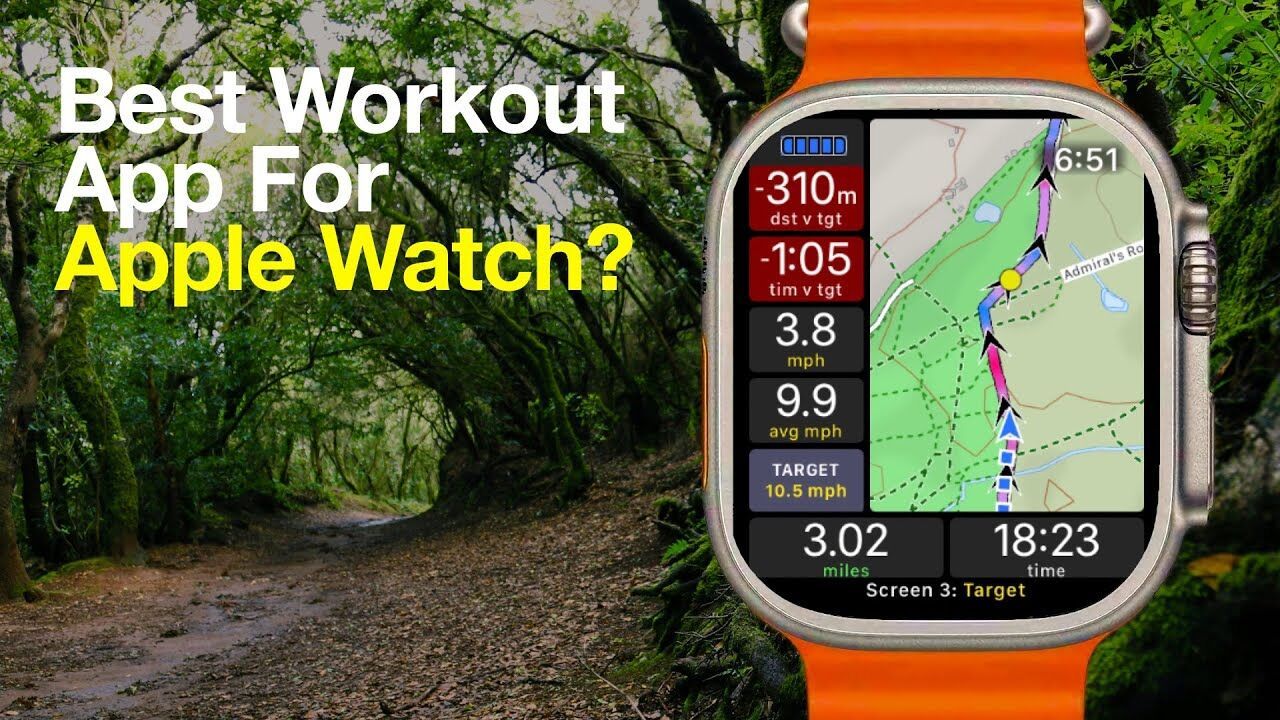
Apple Watch does not read a GPX file on its own: on watchOS 27 and iOS 27, Maps, Workout and Compass do not import the format, and the word appears on no page of Apple’s user guides. The most complete method goes through the WorkOutDoors app: it imports the GPX on the iPhone, sends it to the watch and guides you on a map, with no subscription.
The recommended method: WorkOutDoors
WorkOutDoors costs $8.99 as a one-off purchase on the App Store (€9.99 in France); its in-app purchases are optional tips only, and maps of the whole world are included. It needs watchOS 9.2 or later, so it runs on every watch that supports watchOS 27, from Apple Watch SE 3 to Apple Watch Ultra 4.
- Install WorkOutDoors on the iPhone: the watch app comes with it.
- Get the GPX onto the iPhone, then share it to WorkOutDoors from Mail, Safari or another app. Or save it in Files, then in WorkOutDoors go to the Routes tab and tap Import (WorkOutDoors guide). TCX and FIT files work too.
- For an offline map, open the Map Downloads tab in the iPhone app, drag a box over the area to download and transfer it to the watch.
- On the watch, when you start a workout, tap the round “...” button, then Navigate > Route, and pick the route.
What the watch shows with WorkOutDoors
- An OpenStreetMap map, standard or topographic with contour lines, and the route coloured by gradient, with its elevation profile; shaking your wrist up and down reads out the distance and ascent remaining.
- An alert when you leave or rejoin the route, or turn back; off the line, a compass shows the distance and direction to the nearest point of the route.
- Turn-by-turn directions, if the GPX holds direction cues as waypoints; otherwise the app offers to derive them from sharp bends in the line, which it says is less reliable.
- Downloaded maps stay on the watch: an Apple Watch with GPS navigates without the iPhone (WorkOutDoors guide).
What watchOS and Maps do without an app
Maps can guide on the watch a route you draw by hand on the iPhone, not a GPX file. In Maps, touch and hold a path, tap More, then Create a Custom Route; add points, then tap Save Route with Download Map turned on (iPhone User Guide). Then turn on Offline Maps > Sync with Apple Watch: the watch guides you with sounds and haptics, even without the iPhone or a signal (Apple Watch User Guide). Trail search in Maps is limited to the United States.
Without a route, the Compass app offers Backtrack: the watch records the path you walk and helps you retrace it (Apple Watch User Guide).
Other apps
- komoot: import the GPX in the app (Profile > Saved routes > Import > Import a file). The watch app runs on its own from watchOS 10, guides you with haptics and works offline in unlocked regions; one region is free when you sign up (komoot help).
- Footpath: imports the GPX, but sending it to the watch needs the Footpath Elite subscription ($23.49 a year on the US App Store). Audio off-route alert, no rerouting (Footpath guide).
- Gaia GPS: only routes go to the watch, not tracks, so convert the track to a route first. Off Route alert beyond 500 ft from the line (Gaia GPS help).
How do you use a GPX file on a Garmin watch?
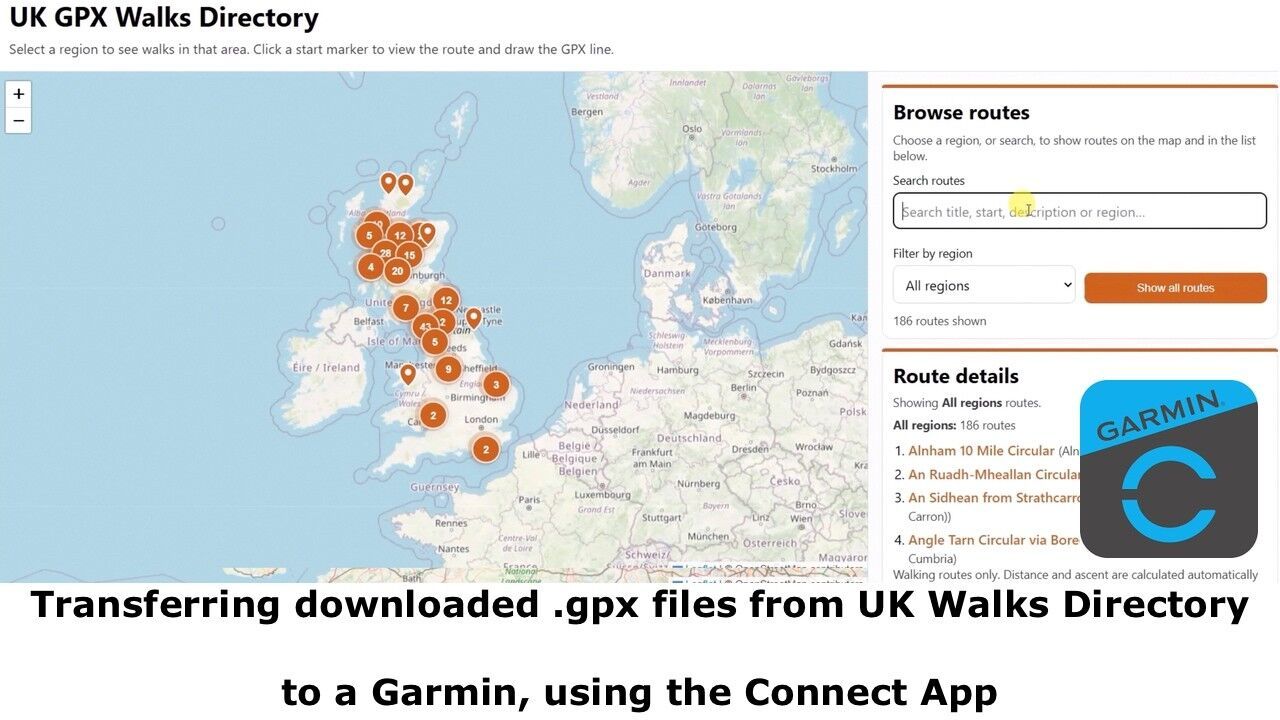
A Garmin watch does not read the GPX file as it is: you import it into Garmin Connect, which turns it into a course, then send that course to the watch. Garmin Connect accepts .gpx, .fit and .tcx files (Garmin Support).
Import the GPX into Garmin Connect
- Open the GPX file on your phone.
- Choose Garmin Connect to open it. On iPhone, tap Share, then Garmin Connect (or “Copy to Connect”); on Android, select Connect.
- Choose a Course Type (Road Cycling, Hiking…), rename it if you like, then save it to your account.
On a computer, the Garmin Connect website does the same: Training & Planning > Courses > Import (bottom right of the list), drop the file, select Get Started, choose a Course Type, then Save.
Send the course to the watch
- In the Garmin Connect app, select More, then Training & Planning > Courses.
- Select the course, then the watch icon with an arrow.
- Pick the watch: the course arrives at the next sync.
From the website, Send to Device goes through Garmin Express with the watch plugged in by USB (Garmin Support).
Follow the course on the way
On a fenix 8, for example: press START, choose a GPS activity, then Navigate > Saved and the course, and select Do Course. The line shows on the map, and Off Course alerts are on by default on most watches (Garmin Support). The watch only recalculates the route when the course routing setting is Use Map.
Limits worth knowing
- Most watches hold 100 courses; the Instinct series, 30.
- A course has at most 50 course points on most watches (added points and turns); beyond that, the watch removes some itself (Garmin Support).
- Only the first 15 characters of the name are read: two courses that start the same way get mixed up.
- Courses work on the families Garmin lists, including Forerunner, fenix, epix, Enduro, Instinct, MARQ, vivoactive 6, Venu 4 and Venu X1 (Garmin list).
How do you use a GPX file on a Suunto watch?
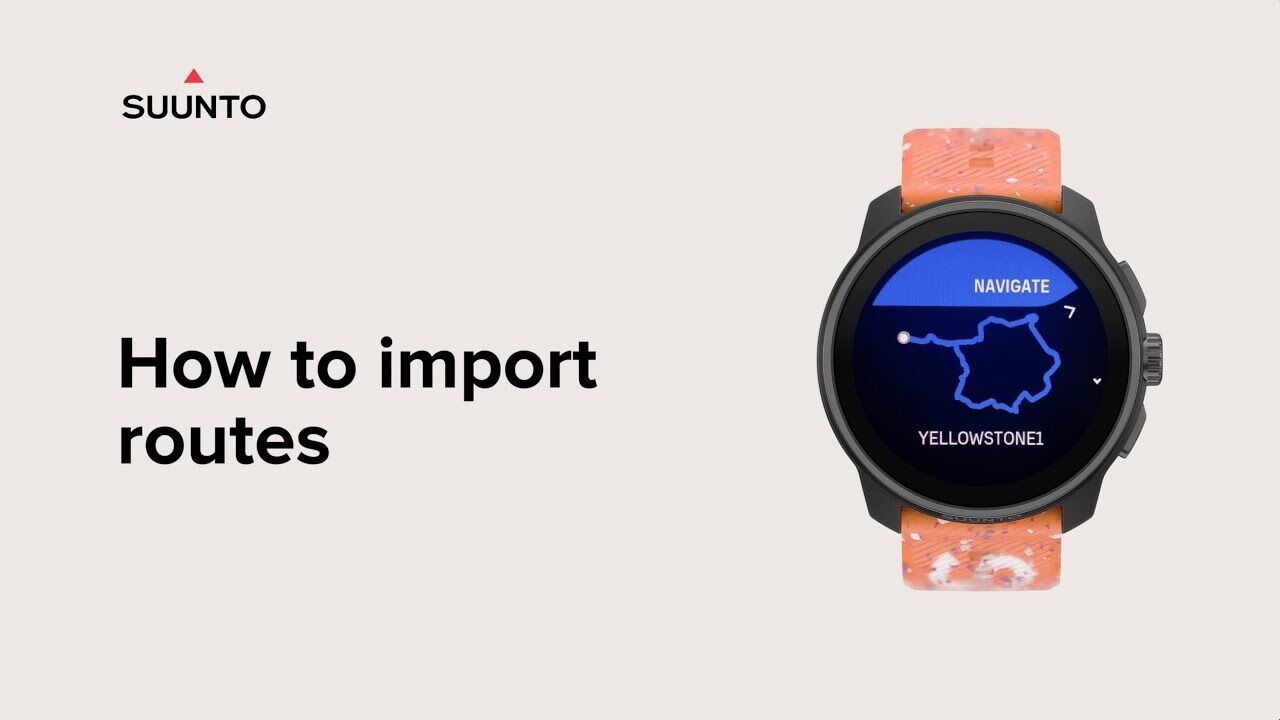
The Suunto app imports the GPX file, stores it in the routes library, then sends it to the watch at the next sync. GPX is the only route format it imports (Suunto Support).
Import the GPX into the Suunto app
- Save the .gpx file on the phone: in Files or iCloud Drive on iPhone, in Files or a Drive on Android.
- Open the Suunto app and the map, tap the Plus button, then Import route (.gpx), and pick the file.
- The route opens on the map: name it and save it to the library.
- In the library, open the route, turn on turn-by-turn guidance if you want it, and check that Use in watch is on (Suunto Support).
- Sync the watch with the app: the route arrives on it.
Follow the route on the watch
On a Suunto Run, open the Navigation widget, press the upper button, then Navigation target > Routes, pick the route and start it. The watch shows the line and warns you when you stray more than 100 m from it; the same threshold applies on the Race, Race 2, Race S and Vertical (Suunto Support).
Suunto does not publish a limit on the number of routes or points for these models.
How do you use a GPX file on a Coros watch?
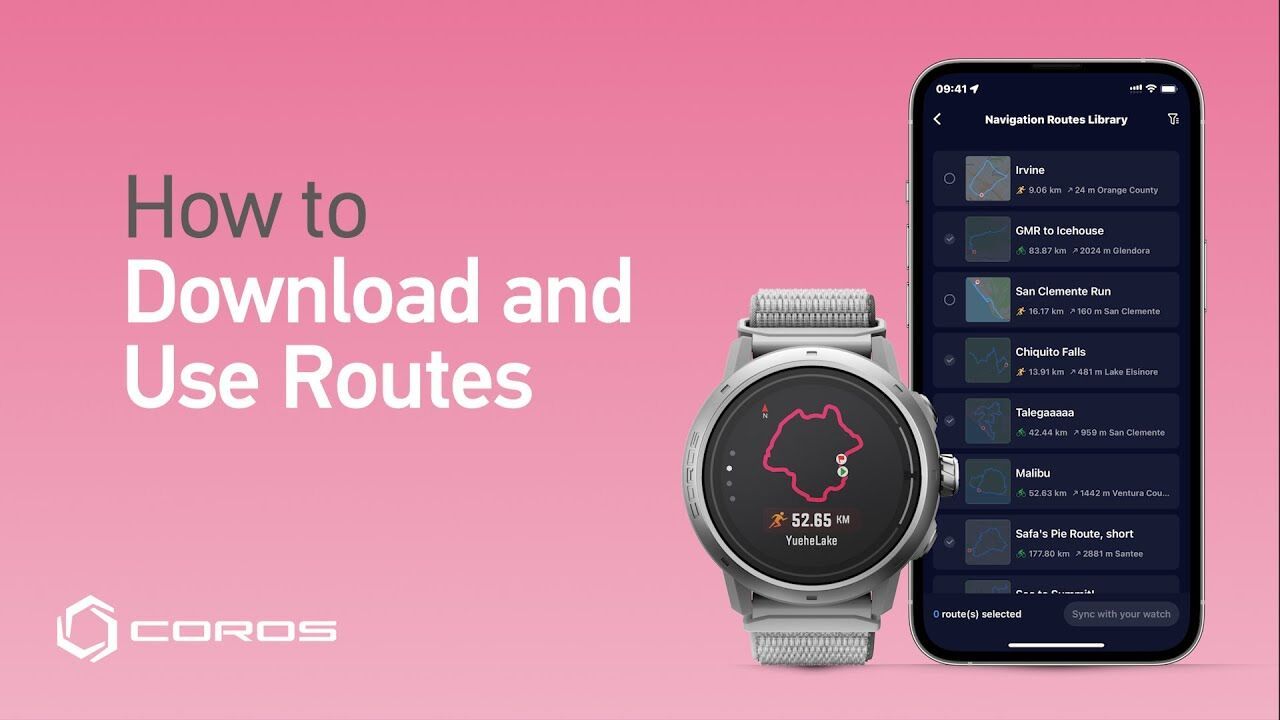
On Coros, everything goes through the COROS app on the phone: it opens the GPX file, saves it to your route library and syncs it with the watch (COROS Support).
Import the GPX into the COROS app
- Download the route as a GPX file on the phone.
- Open the file and, when the phone asks which app to use, choose COROS.
- Tap Save: the route joins the Route Library on the Explore page.
- Open the route, tap the sync button at the bottom of the page, then send it to the watch.
Follow the route on the watch
On the watch, enter the activity mode (run, trail run, bike, hike, mountain climb) and, before you start, scroll down to Settings > Navigation to pick the route (COROS Support). Turn on the off-route alert: it goes off when you stay more than 20 m from the line for over 10 seconds. In run and trail run, the app generates turn arrows for an imported GPX, replacing the file’s own cues.
A COROS watch holds up to 100 routes (COROS Support). The GPX must be standard: a malformed file can display wrongly.
How do you use a GPX file on a Polar watch?
With Polar, you import on the Polar Flow website, not in the app: the GPX (or TCX) route becomes a favorite, which the watch picks up at the next sync (Polar Support).
Import the GPX into Polar Flow
- Sign in to the Polar Flow website and open Favorites (icon at the top right).
- Click Import route, drop the GPX or TCX file (25 MB at most), then Import.
- Name the route, pick a sport if you like, and confirm: it joins your favorites.
- Check that it is in the watch’s sync list, then sync with the Polar Flow app.
Polar also mentions the FlowSync software with the watch plugged in by USB; the Vantage V3 manual uses the Flow app, the safer route on recent models.
Follow the route on the watch
Choose the sport profile, then Routes and the route, and start from the start point, along the way or in reverse. Route guidance shows the line on the map and its profile; turn-by-turn guidance (sound and vibration) starts from the navigation menu on the Vantage V3 and similar models. The documentation describes no off-route alert.
Limits worth knowing
- Only the first 100 favorites go to the watch.
- A long route is reduced to 500 points on Grit X, Grit X Pro, Pacer Pro and Vantage V2, and to 1,500 points on Grit X2, Grit X2 Pro, Street X, Vantage M3 and Vantage V3 (Polar Support).
How do you use a GPX file on Samsung Galaxy Watch and Wear OS?
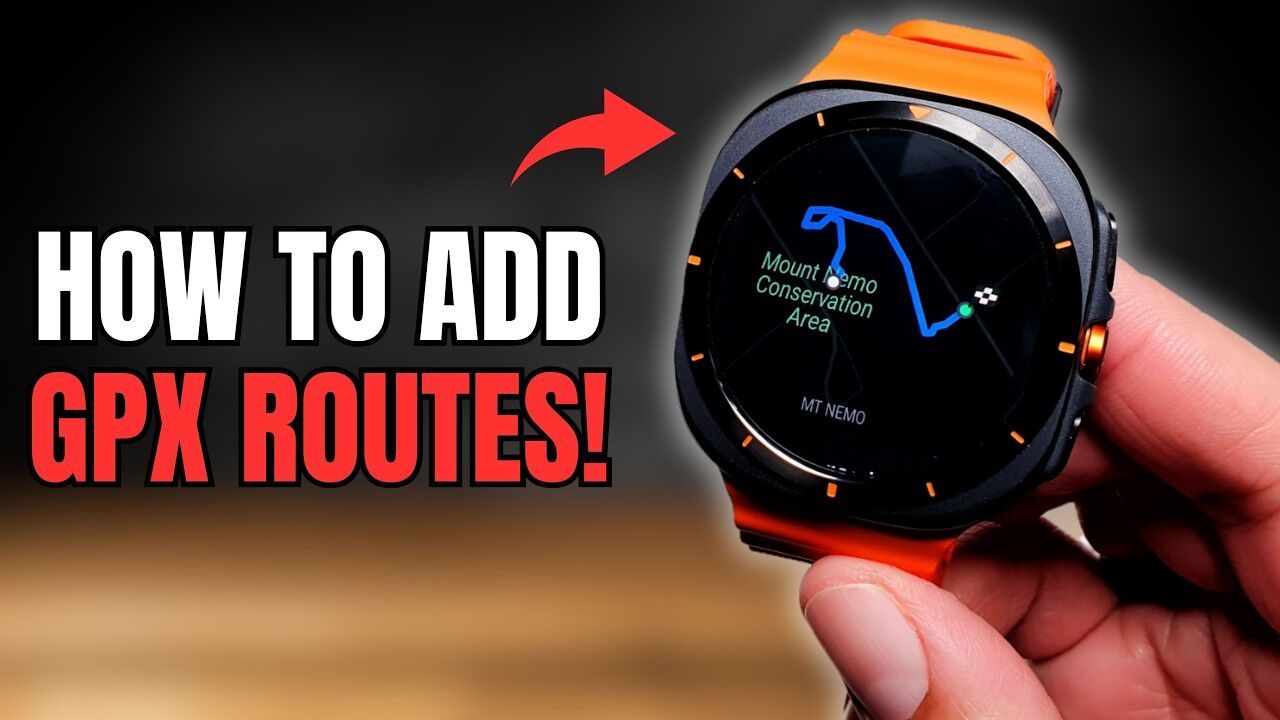
Samsung Health imports a GPX file on a few Galaxy Watch models only: the Galaxy Watch5 Pro and Galaxy Watch Ultra according to Samsung Support, which says other models are not compatible, and the Galaxy Watch Ultra2 according to the Samsung Health page (Samsung Support, Samsung Health). You need an Android phone.
Import the GPX into Samsung Health
- On the phone, open Samsung Health, the Exercise tile, then the workout (running, cycling, hiking).
- Tap the Route target drop-down, then Route target > Select route.
- Tap Import GPX files, pick the file, tap Done, choose the workout type and Save.
- On the watch, start the workout, open the settings on the countdown screen, turn on the Route target and pick the route.
Leave a gap between start and finish: a loop that closes too tightly is detected badly. Samsung Support describes neither an off-route alert nor turn-by-turn guidance.
On other Wear OS watches
Google Maps for Wear OS guides you to a place you search for or say, without reading GPX files: its help page never mentions them (Google help). The documented option is komoot: import the GPX into komoot (Profile > Saved routes > Import), install komoot on the watch with the same account, then open the route under Planned Routes. The watch app gives turn-by-turn guidance and works offline, from Wear OS 2; it shows the last 10 routes (komoot help).
How do you use a GPX file on a Wahoo or Hammerhead bike computer?
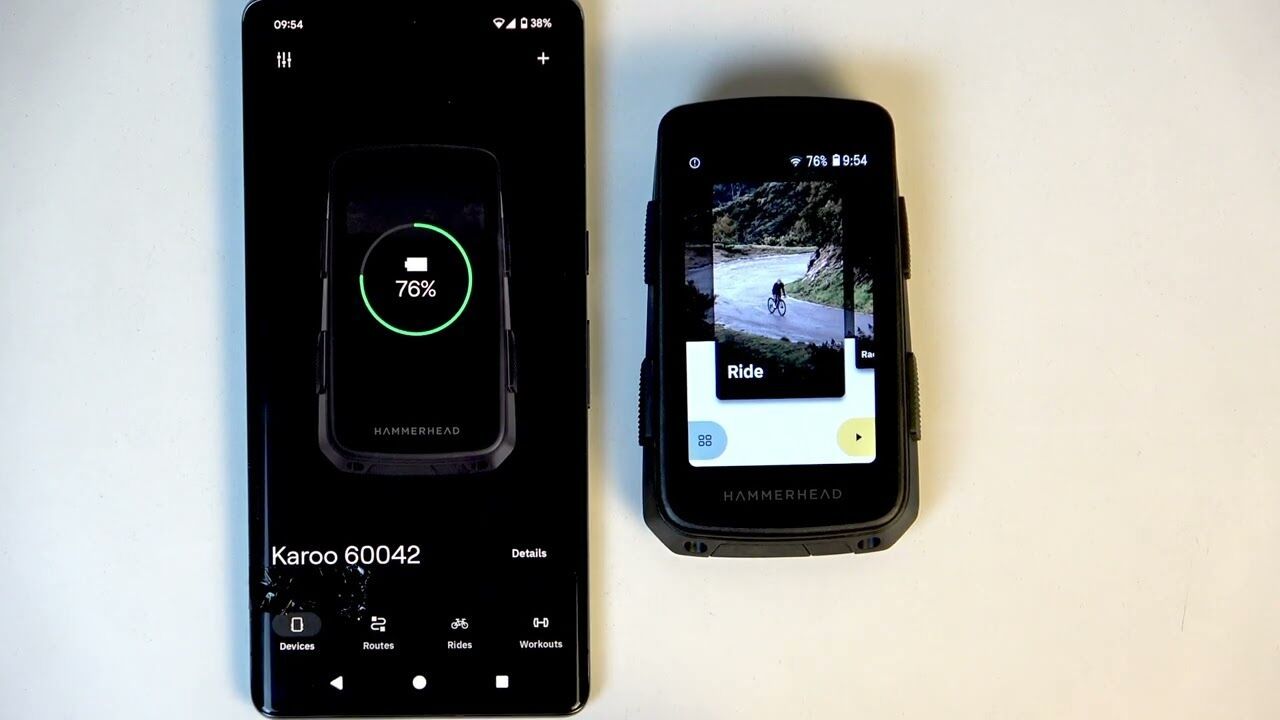
Wahoo ELEMNT and Hammerhead Karoo bike computers read a GPX file without a third-party service: you open it with the brand’s app, which sends it to the unit.
Wahoo ELEMNT
- Download the .gpx (or .tcx, .fit) file to the phone and open it with the Wahoo app (ELEMNT ACE, BOLT 3, ROAM 3) or the ELEMNT app (older models).
- Accept the import, then in the Wahoo app go to Explore > My Collection > My Routes, select the route and Send to ELEMNT (Wahoo Support).
- On the unit, open Routes, pick the route, then Select Route, and ride.
The unit gets a single route over Bluetooth, or the whole library over Wi-Fi. It shows the line and gives turn-by-turn guidance; ROAM v1 and v2, BOLT v2, BOLT 3, ROAM 3 and ACE reroute you back on track. For a file without cues, ROAM v1 and v2 and BOLT v2 generate turn-by-turn up to 200 km (Wahoo Support). The ELEMNT MINI cannot load routes.
Hammerhead Karoo
- On the Hammerhead Dashboard website, open Routes, then New Route > Import, and drop the GPX file (Hammerhead Support).
- Or, from the phone, share the file with the Hammerhead Companion App: it turns into a route.
- The Karoo syncs when you open the Routes app (over Wi-Fi, mobile data or the Companion App); start the route from the map screen with Route.
On the Karoo, the line turns red off route and the unit takes the shortest way back to it; rerouting can be switched on in the settings. Beyond 322 km (200 miles), the route is split into segments, and points of interest in an imported GPX are not shown.
How do you use a GPX file on an iPhone or Android phone?
On a phone, a GPX file opens in a map app, not in Apple Maps or the Google Maps app: their help pages describe no import of the format. The file arrives by email, message, AirDrop or download, then you choose the app that opens it.
Open the GPX on iPhone
- Open the Files app, tap Browse, then the Downloads folder (or iCloud Drive).
- Touch and hold the .gpx file, choose Open With, then the map app.
- To stop choosing each time, touch and hold, tap Get Info, then Always Open With (iPhone User Guide).
Open the GPX on Android
Tap the file in your messaging app, email, Google Drive or file manager, then choose the app: Open with Organic Maps, or Open in OsmAnd, which stores it with its tracks.
Which app to follow the track?
- OsmAnd, on iPhone and Android: after the import, Navigation > Settings > Follow track guides you along the track by voice and recalculates to bring you back to it (OsmAnd docs).
- komoot: Profile > Saved routes > Import > Import a file (GPX, FIT or TCX), then Navigate. Voice guidance and offline use in unlocked regions; one region is free (komoot help).
- Organic Maps: shows the track on the map and under Bookmarks and Tracks; its FAQ describes no guidance along the track (Organic Maps FAQ).
- Gaia GPS and Locus Map import GPX files too; with Gaia GPS, offline maps need the Premium subscription.
- Google Maps: only the My Maps route is documented. On a computer, import the GPX into a My Maps layer (Add layer > Import), then open the map in the Google Maps app under You > Maps (Google help).

How do you use a GPX file on a Garmin eTrex hiking GPS?
A Garmin hiking GPS reads the GPX file itself: copy it over USB into the right folder of the device. The folder depends on the model and on what you want to do with the file.
Copy the GPX over USB
- eTrex SE and eTrex Solar: copy the file into
NewFilesto find it under Saved, converted to a course and synced with Garmin Explore; inGPX, it opens in the device’s GPX Data app, for viewing and navigating only (Garmin manual). - GPSMAP H1: most files go into
Garmin/NewFiles, theGPXfolder is for geocaches; Garmin says the manual copy is done from Windows (Garmin Support). - GPSMAP 67: a Mac does not see the device by default, so you go through Garmin Express (Garmin manual).
Without a cable, or with software
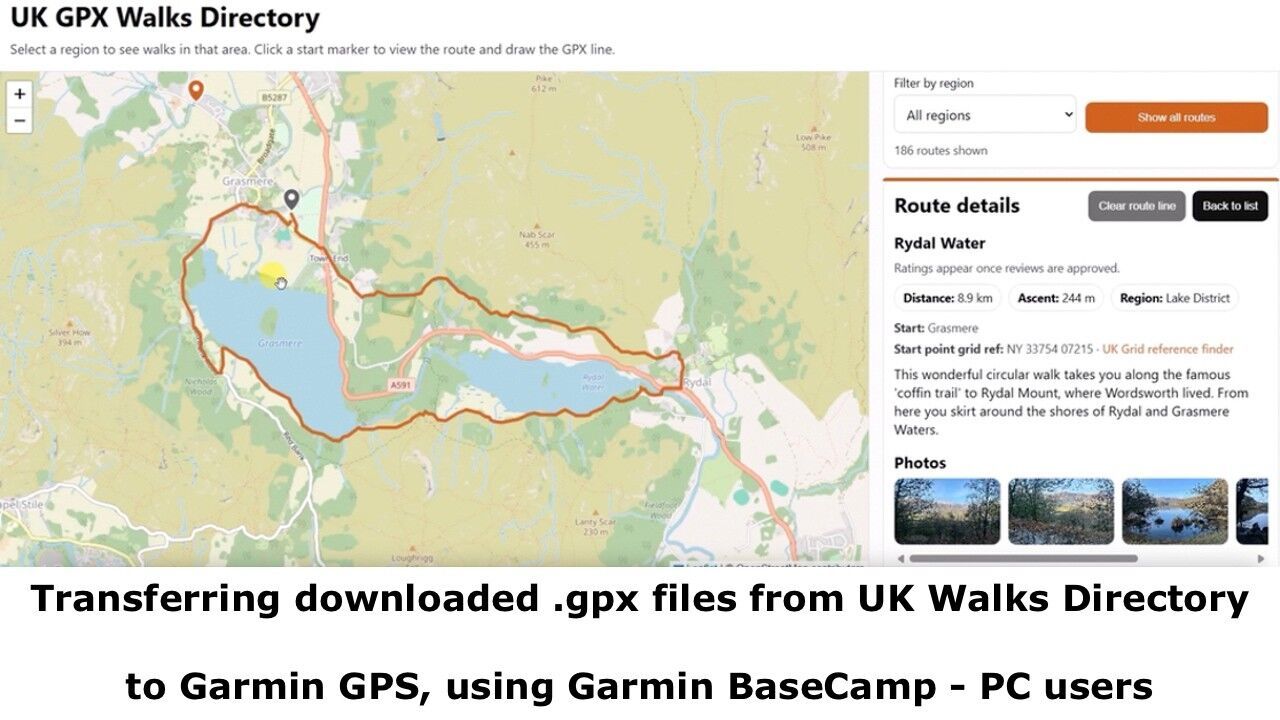
The Garmin Explore app imports a GPX from the phone (Map, Plus button, Import .GPX) and syncs it with the device (Garmin Support). Garmin Connect also sends courses to the eTrex SE, eTrex Solar, GPSMAP 66, 67, 86, H1 and Montana 700. On a computer, BaseCamp can still be downloaded for Windows and Mac: File > Import, then Send to Device; Garmin plans no further updates (Garmin Support).
On the trail
The track shows on the map. The GPSMAP 66, 67, 86 and Montana 700 have Course Alerts, other models an off-course alarm that beeps at the distance you set. As for capacity, an eTrex SE holds 10 GPX tracks and 10 GPX routes, and 50 courses of 200 points (Garmin Support).
Steps checked on 28 October 2026 against each brand’s official documentation. Menus change with updates: if anything differs, the brand’s documentation wins.
Before or after the ride
- Open a GPX file See the track on a map with its elevation profile before you send it to the device.
- Convert to GPX A KML, KMZ, FIT or TCX file your device will not read? Turn it into GPX.
- GPX tracks in France Hiking, trail running and cycling tracks by region, as GPX downloads.
- GPX glossary Track, route, waypoint, elevation gain: GPX terms in plain words.

Your GPX files, on your Mac too
GPX Path for Mac opens your GPX files, makes them editable point by point and keeps downloaded maps on your disk. €24.99 a year.